Personal Project: Building Home Assistant Dashboards
Introduction
Home Assistant, an Open Source home automation solution, has a nifty dashboarding feature. In order to do efficient control of our smart home, I designed and built dashboards for wall-mounted tablets and our phones.
In this post, I'll talk about the design process, and building of these dashboards. It was a delightful personal project.
What are we building here?
Home Assistant (HA) is an Open Source home automation solution, which supports thousands of different integrations - including smart lights, thermostats, energy monitors, and all sorts of things.
 Home Assistant
My husband, Chris DeFlumeri, has spent years working on our smart home set-up. We started with Phillips Hue and Amazon Alexa. However, in an effort to be less dependent on closed-source and corporate solutions we have moved to Home Assistant and more types of controls and sensors. If you're interested in how this is configured and works, I recommend his post on the topic here:
 Chris DeFlumeri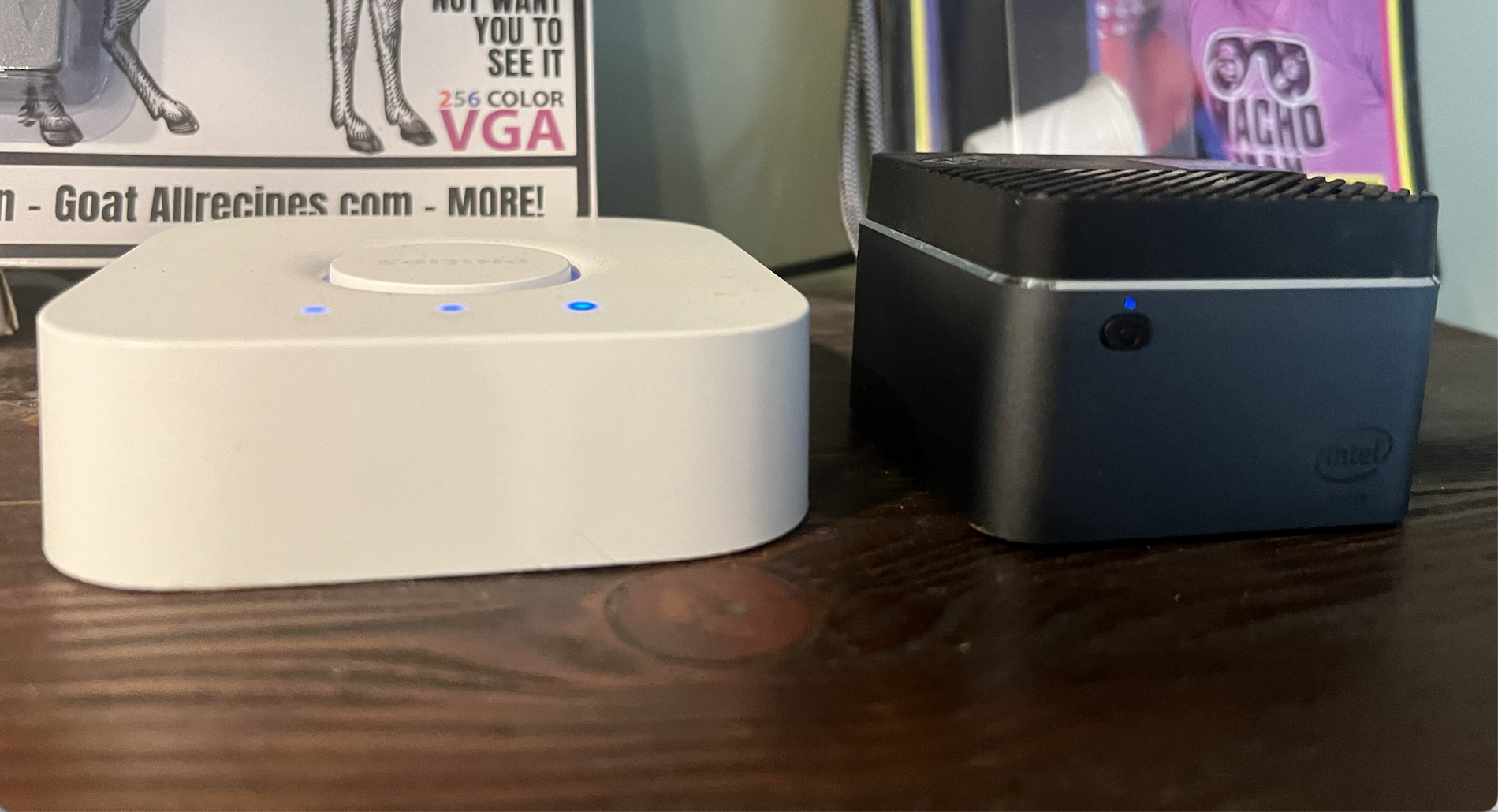
That takes us to today, where we are very sick of talking to our aging Amazon Alexa speaker and while we wait to build self-hosted voice assistants, we are using the Home Assistant dashboard more and more.
And although my husband is brilliant and has set up everything to be controlled from Home Assistant (HA), he built the bare minimum to "make it work" and the experience of it had room for improvement.
And that's where I came in.
The ask
- Design usable dashboards to control various smart-home devices in our home
- Have smart home control accessible via a dedicated mobile app
- Have smart home control accessible via two wall-mounted tablets (for guests, the toddler, and when we don't want to take our phones out)
Design process
To build something great - you need to go through a design process. For this specific project's needs, I followed a shortened and simplified process:
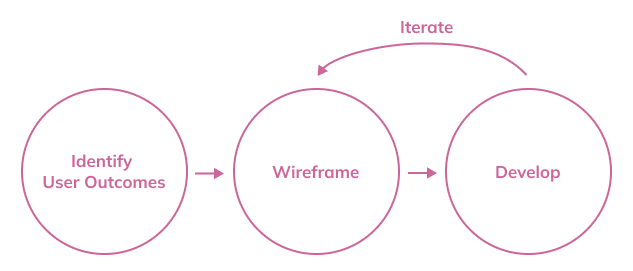
No high fidelity designs - I was working strictly within HA's existing design system and tooling. And although HA had a decent review of components in their design guide I could have used as a starting point, it didn't seem worth the trouble.
I did the development myself with the HA with the graphical dashboard builder that they provided, and discovered a lot about the capabilities of the platform as I went.
Users & User Outcomes
Primary user: Homeowners
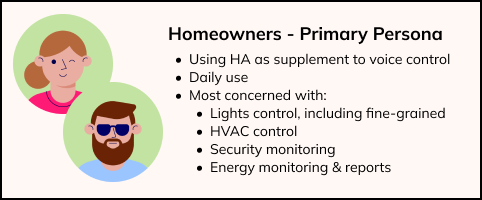
Secondary users: Visitors & Guests
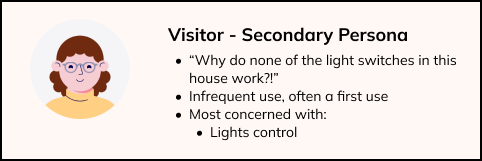
I focused on the primary persona for V1 - since the recruitment was cheap and easy 😉 - and it was the primary persona. Since implementing V1 I've had the opportunity for some of the secondary personas to try this out and I've got insights into how to improve that persona's experience.
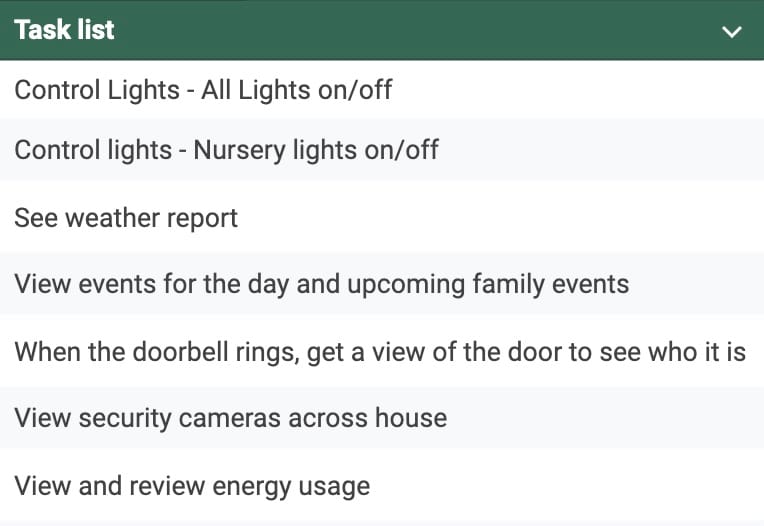
Personas are well and good, but we needed specific "top tasks" or "user outcomes" to pursue.
The initial list changed a bit after implementation and iteration. Here's the initial and I'll share later how things changed:
Wireframe
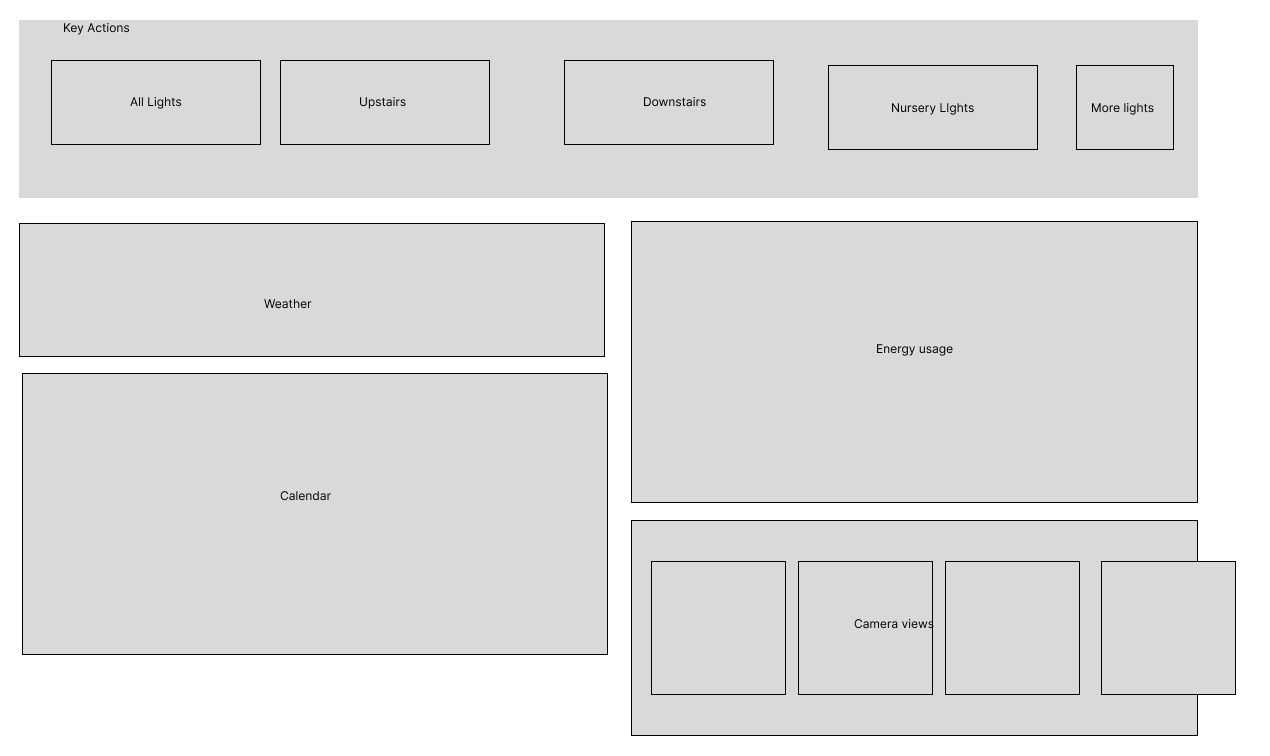
With this basic user understanding, and idea of top tasks, I did a couple wireframe iterations for the tablet interface. I did not do any high-fidelity work since we were going to use OOTB HA dashboard components – and since I was the developer as well as designer, it would have been inefficient for 90% of the work.
Development
Home Assistant has a nifty WYSIWYG editor for the dashboards - which I used for the development. The dashboards are YAML and the visual editor will create the YAML for you – but you can also go back and forth between the YAML and the visual editor to get what you want. (The code editor was very handy when I had to re-do it all, and was able to copy the code and place it into the right place vs build it all from scratch.)
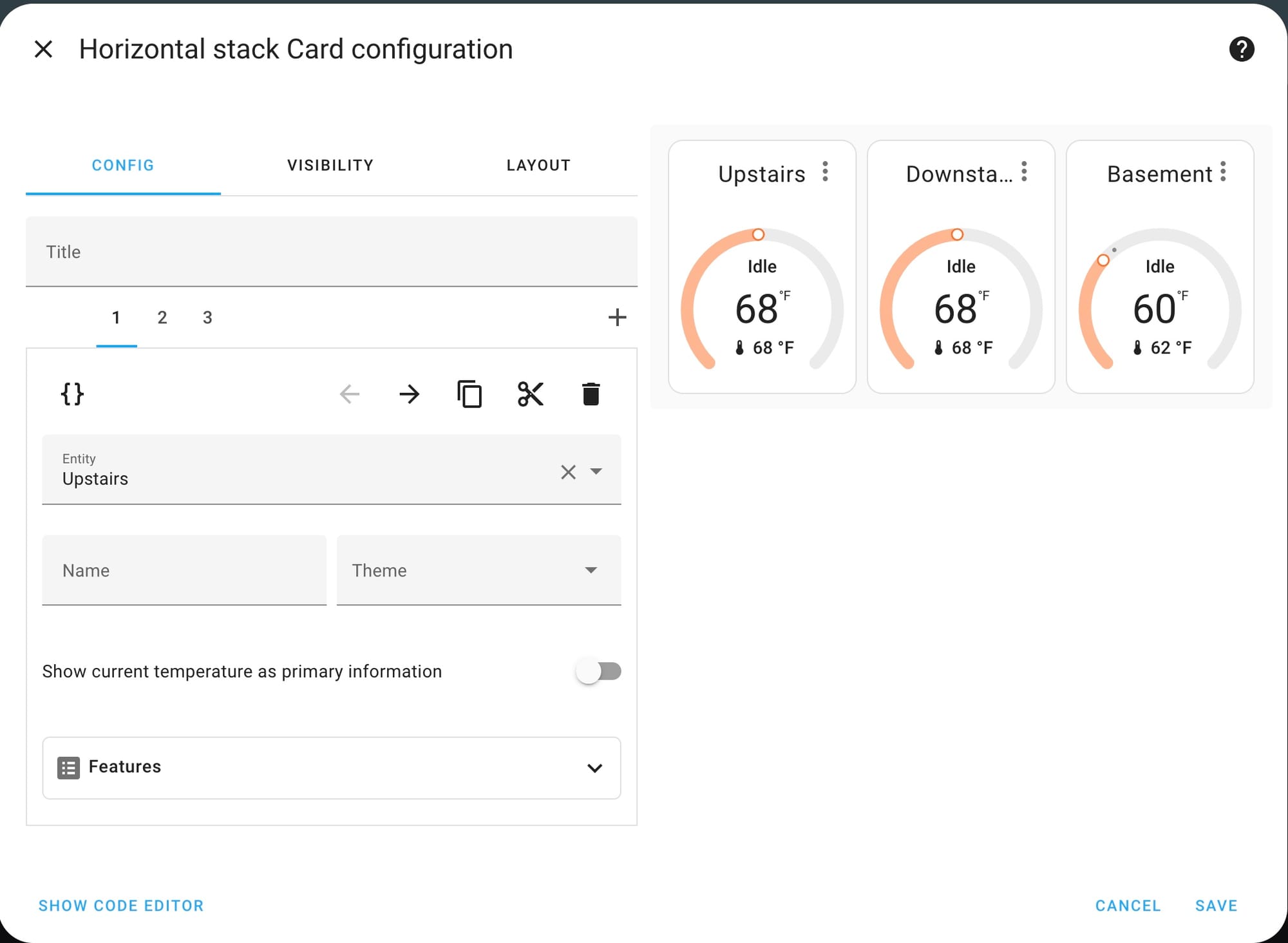
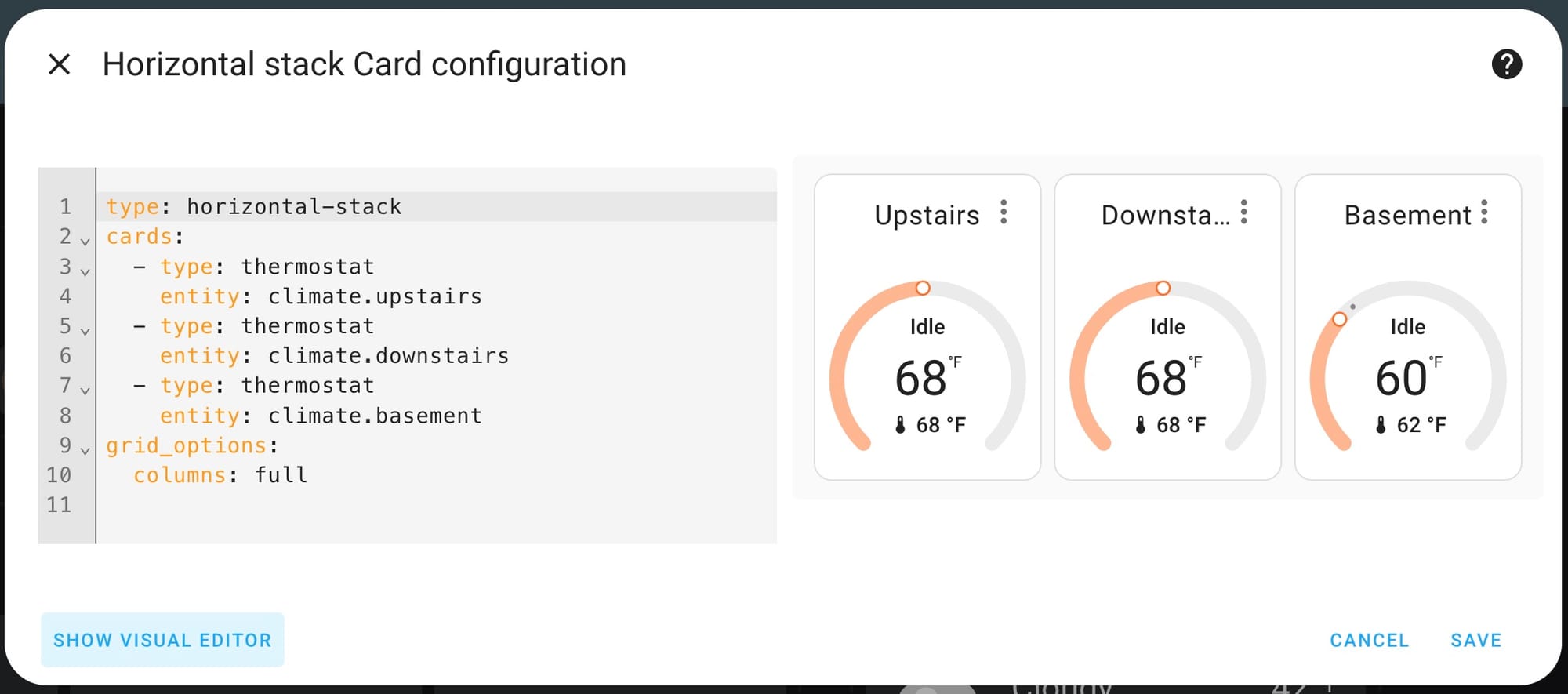
Compare the GUI visual editor with the code editor - both showed the same preview and you could swap between the two easily.
Issues during development
Remember those initial tasks? Well - turns out some of those were harder to implement than expected. Calendar integration was scoped out for V1, as well as dynamic doorbell notifications.
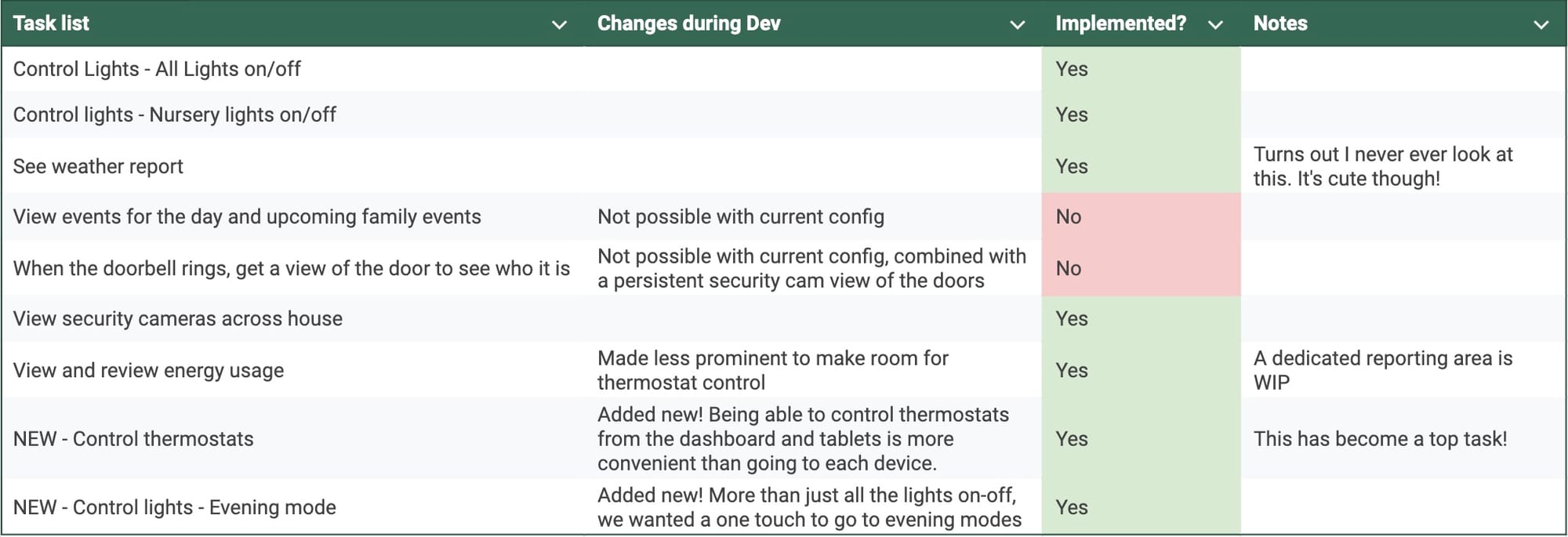
Apart from a learning curve with using the HA editor, and the couple of scoped out tasks, development was fairly smooth.
Iteration - or "wow I can't believe I made that mistake"
I've been a working UX designer for 12+ years and I made such a beginner mistake: I designed for the tablet, when there were multiple modes of access.
Mostly, responsive design took care of me, but in the fine-grained light control panel, I thoughtfully put "downstairs" on the left, and "upstairs" on the right. We use upstairs fine grained control much more frequently than downstairs, and while it was NBD on the tablet, accessing on our phones meant we had to scroll through a lot of settings before getting to what we wanted.
Some quick changes to improve the IA on mobile fixed this up quick, but I was seriously kicking myself for this novice move! I was reminded that the basics are the basics for a reason.
Final product
You've read all the way here, so let me share how this dashboard works!
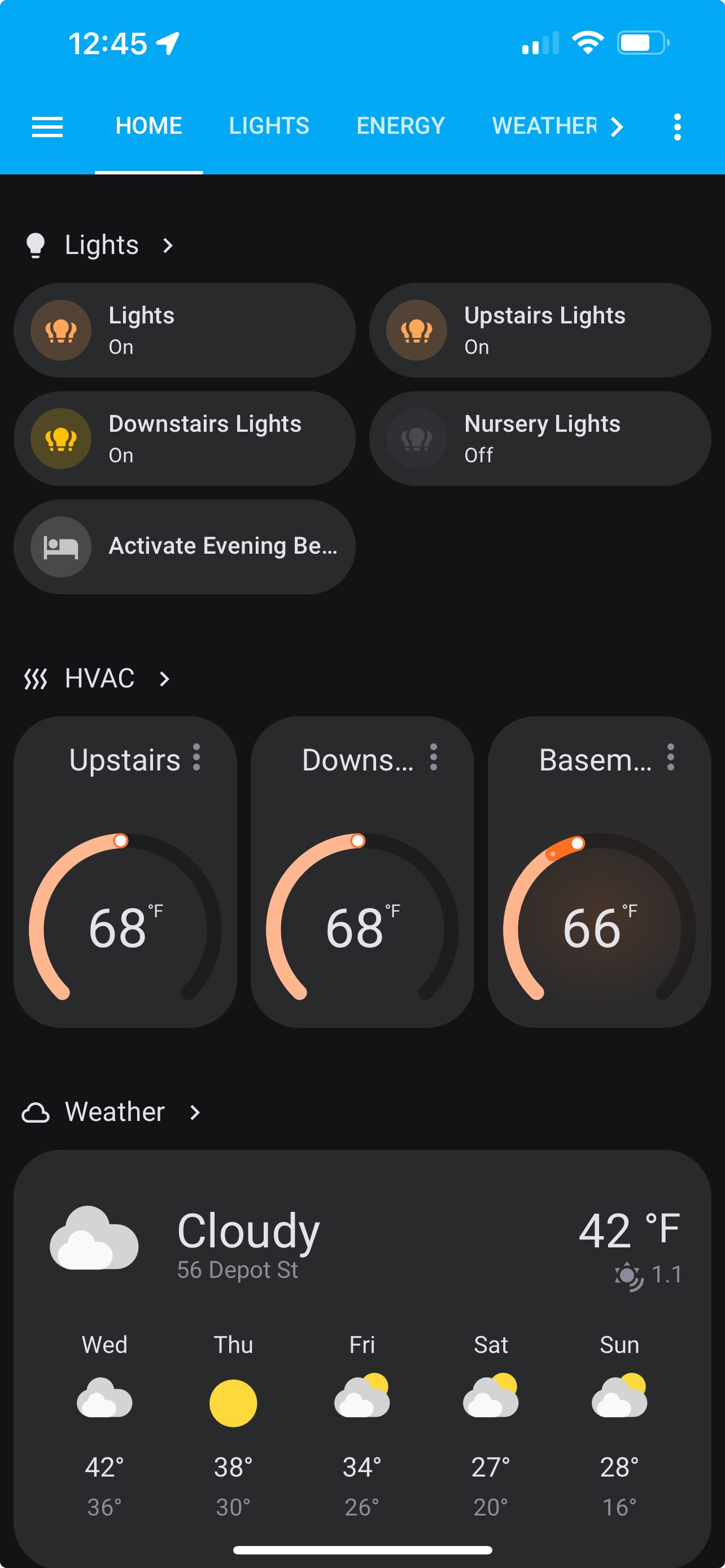
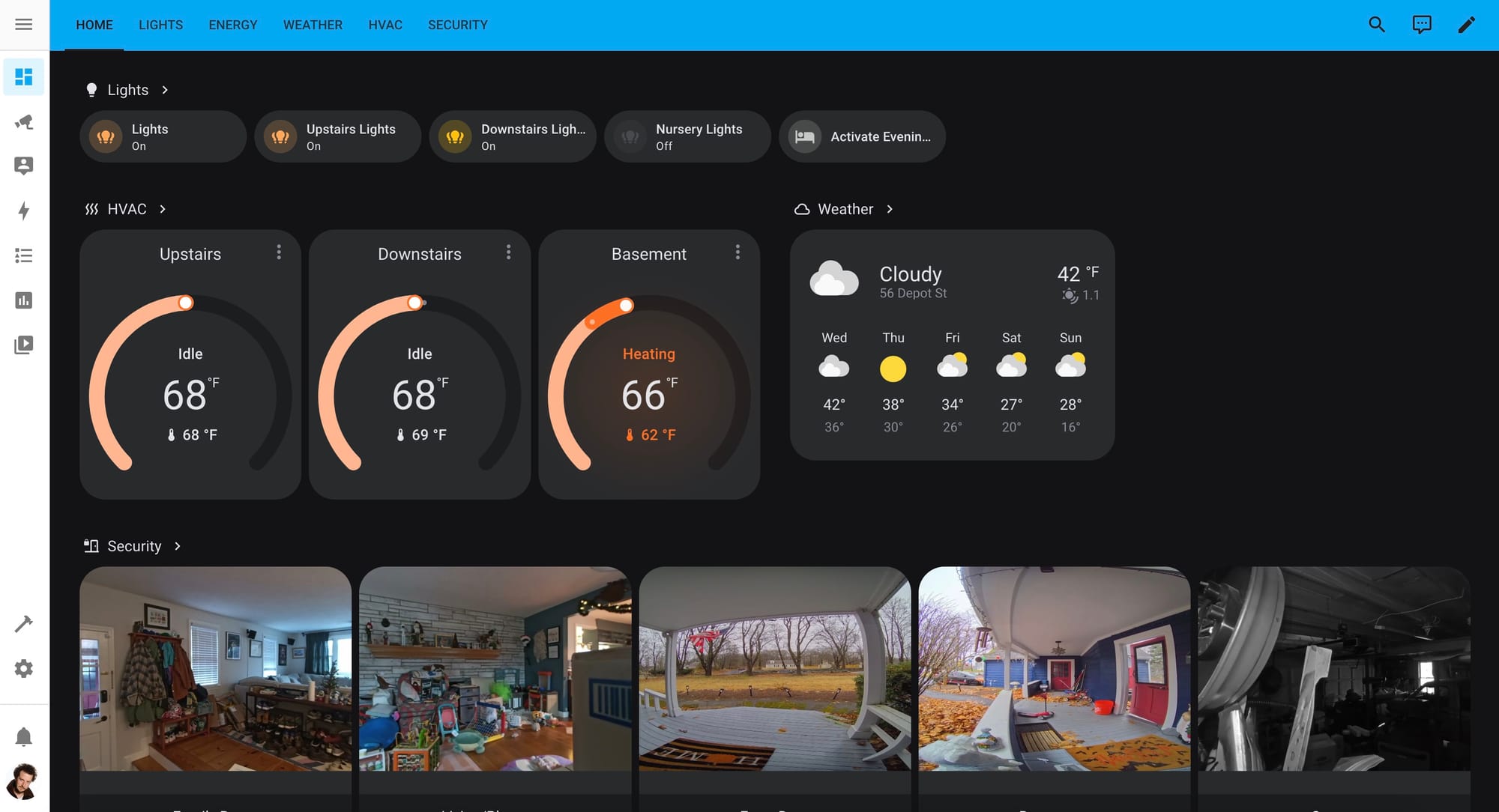
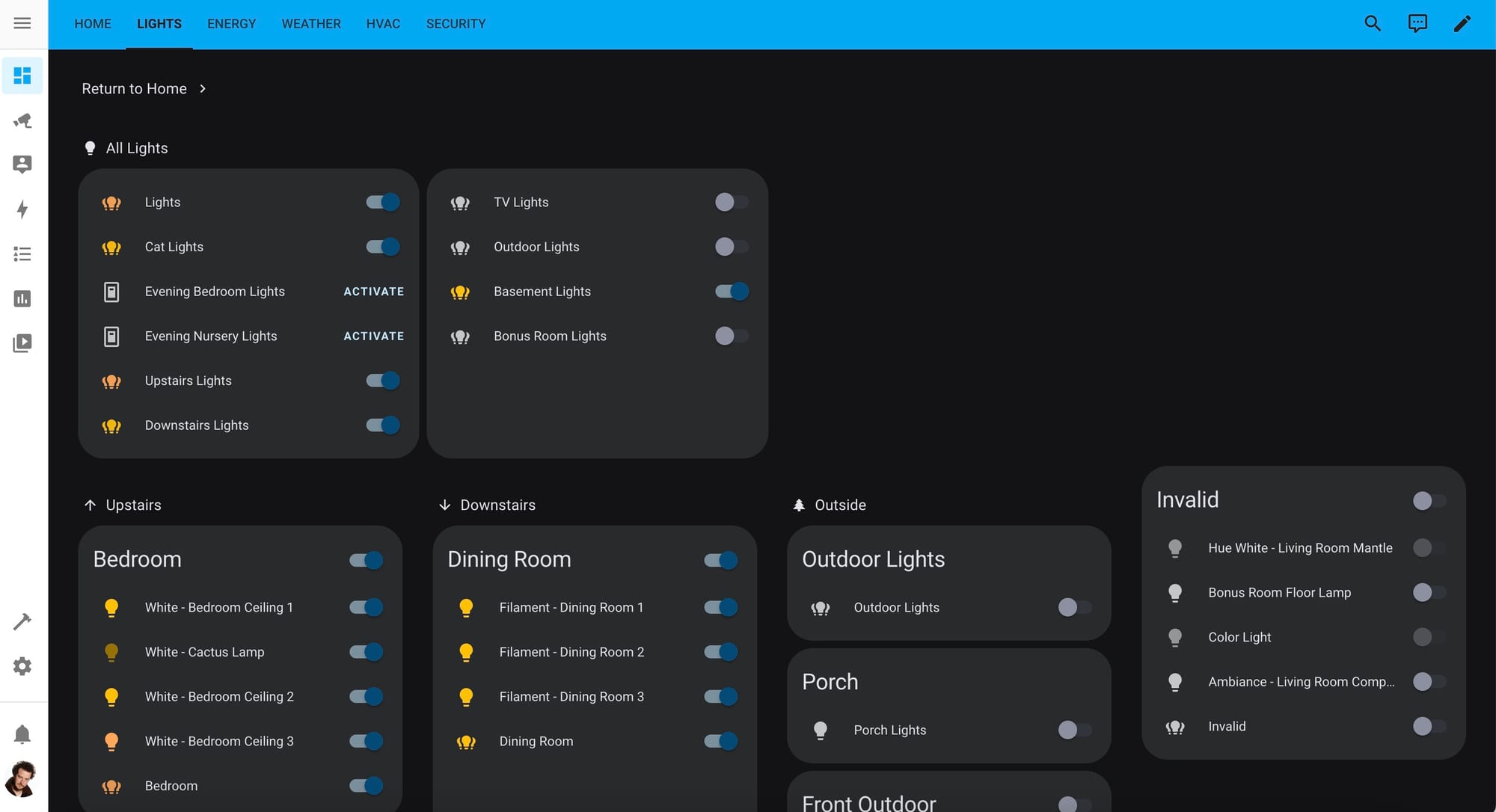
Screenshots from mobile home, tablet home, and tablet lights drill down
Upon approach of the wall mounted tablets, the screen activates. Here's a video demo:
If you give Home Assistant a try - let me know! Connect with me on LinkedIn, I'd love to hear about your experiences!